🔑 Software keys sent via WhatsApp or E-mail within 24 hours (1 Day) ! ⏳ If not received, Contact us! ! 📬

Windows 10 vs Windows 11 – Key Differences Explained

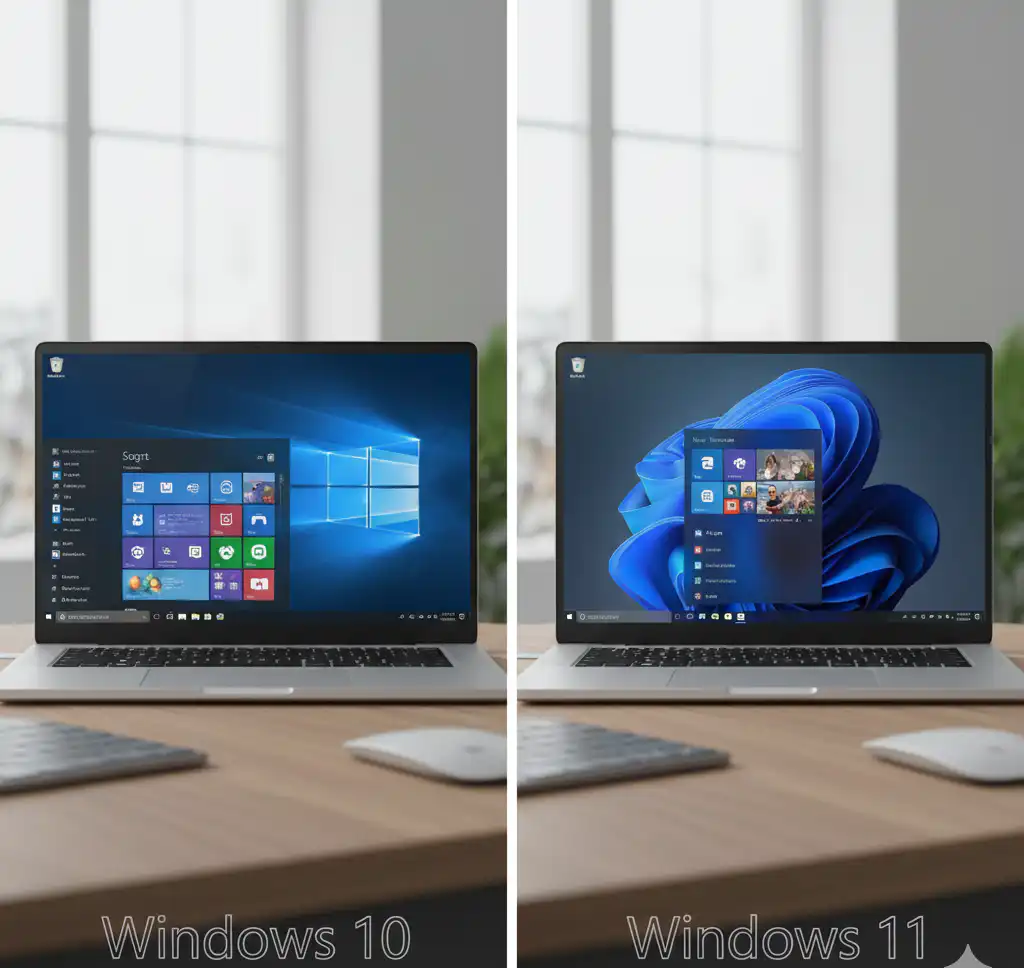
If you’re starting to use Windows 10 Vs Windows 11 and wondering which is better for your needs, Element Key is the right place to explore the key differences between both versions. We’ve simplified the comparison, so you don’t have to dig through complex tech terms or forums.
In this guide, we’ll walk you through major differences in design, performance, features, security, and overall usability, all explained in clear, simple language that anyone can understand.
Difference Between Windows 10 and Windows 11?
| Feature / Element | Windows 10 | Windows 11 |
| Release Year | 2015 | 2021 |
| User Interface | Traditional design with left-aligned Start menu | Modern UI with centered Start menu and rounded corners |
| Performance Optimization | Good for most hardware setups | Optimized for newer devices and better power efficiency |
| Multitasking | Snap Assist, Task View | Snap Layouts, Snap Groups, improved virtual desktops |
| Gaming Features | Game Mode, DirectX 12 | Game Mode, DirectX 12, AutoHDR, DirectStorage |
| Microsoft Store | Older design, fewer app types | Redesigned, supports Android apps (via Amazon Appstore) |
| Security | BitLocker, Windows Defender | Hardware-based security (TPM 2.0), VBS, Smart App Control |
| Touch & Pen Support | Basic touch support | Improved for tablets, better gestures and stylus input |
| Updates | Larger, slower updates | Faster, more efficient background updates |
| AI Integration | Not included | Includes Copilot and AI features (in supported regions) |
Upgrading to Windows 11, which comes with the best features?
- Device Check Tool: This Window will help in Microsoft’s PC Health Check app tells you if your device can run Windows 11.
- Added Features: Brings Snap Layouts taskbar in the middle, widgets better touch use, and upgrades for gaming like AutoHDR and DirectStorage.
- Better Safety: Windows 11 has tougher safety measures built in using hardware protection from the start.
- Improved Gaming: With the help of this, users get a boost to gaming on devices that support it, with Xbox built right in.
- Keep Your Stuff: In Windows 11, users can get their files and most apps to stay put after you update, but it’s smart to back up just in case.
- Fresh Look: Clean design with smooth edges, new sounds, and updated icons.
- Go Back Option: You have 10 days to switch back to Windows 10 if you need to.
- Update Method: You can upgrade through Windows Update or by using the Installation Assistant tool.
Top 10 Features of Windows 11
- New Start Menu & Taskbar
- Clean, centered Start menu with a minimal layout
- Taskbar icons are centered for a modern look
- Snap Layouts & Snap Groups
- Easily organize open apps into grids
- Snap Groups remember your app layout for quick switching
- Enhanced Gaming Experience
- AutoHDR for better lighting and contrast in supported games
- DirectStorage for faster game loading (on compatible hardware)
- Xbox Game Pass integration through the Xbox app
- Advanced Security
- Requires TPM 2.0 and Secure Boot for stronger protection
- Virtualization-Based Security (VBS) and Smart App Control
- Refreshed User Interface
- Rounded corners, new icons, and smooth animations
- Mica material gives apps a frosted-glass look
- Android App Support
- Run Android apps via Amazon Appstore (in supported regions)
- AI-Powered Copilot
- Built-in AI assistant to help with tasks, writing, and settings (rolling out gradually)
- Better Productivity Tools
- Microsoft Teams is integrated into the taskbar
- Virtual desktops with custom backgrounds and layouts
- Improved Touch, Pen & Voice Support
- Better experience for tablets and 2-in-1 devices
- Voice typing and haptic feedback for stylus pens
- Streamlined Updates
- Updates are smaller and install faster with fewer restarts
Does Windows 11 have the best UI?
The Windows 11 user interface (UI) gives the best UI that helps users to bring a fresh and modern design that helps in simplicity, elegance, and best productivity. It gives the best feature with all facilities, and centered taskbar and Start menu, and offers a balanced and streamlined feel that helps in comparison with the traditional left-aligned layout in Windows 10. In the Start men,u users get cleaner, and also pinned their focused app and recent files without any clutter of live tiles. Windows 11 also introduces rounded corners on all windows, menus, and buttons, creating a softer, more refined visual experience.
What System Requirements are needed in Windows 10 and 11?
| Component | Windows 10 | Windows 11 |
| Processor | 1 GHz or faster with 1 core (32-bit) or 2 cores (64-bit) | 1 GHz or faster with 2+ cores on a 64-bit CPU and supported processor list |
| RAM | 1 GB (32-bit) or 2 GB (64-bit) | 4 GB minimum |
| Storage | 16 GB (32-bit) or 20 GB (64-bit) | 64 GB or more |
| System Firmware | BIOS or UEFI | UEFI, Secure Boot capable |
| TPM | Not required | Trusted Platform Module (TPM) version 2.0 required |
| Graphics Card | DirectX 9 or later with WDDM 1.0 driver | DirectX 12 is compatible with the WDDM 2.0 driver |
| Display | 800 x 600 resolution | 720p display, >9″ diagonal, 8 bits per color channel |
| Internet | DirectX 12 is compatible with WDDM 2.0 driver | Internet and a Microsoft account are required for the setup of the Home edition |
What are the advantages and disadvantages of Windows 11 and 10?
| Pros | Cons |
| Fresh, modern design – Clean UI with centered Start menu and soft corners | Higher system requirements – Not supported on many older devices |
| Better multitasking tools – Snap Layouts and virtual desktops make work easier | Limited taskbar customization – Can’t move it to the top or sides |
| Improved gaming experience – Features like AutoHDR and DirectStorage boost performance | Some apps may not work – Older programs or drivers might need updates |
| Stronger security – Built-in TPM 2.0, Secure Boot, and Smart App Control | Microsoft account needed – Required for Home edition setup |
| Faster updates – Smaller and more efficient updates with less downtime | Learning curve – New layout may confuse long-time Windows 10 users |
| Built-in AI Copilot – Helps with tasks, writing, and settings navigation | Incomplete UI consistency – Some legacy settings still look old |
| Support for Android apps – Access mobile apps through Amazon Appstore (in supported regions) | Feature rollout may vary – Some features aren’t available everywhere |
All Versions of Windows Launched in the Past Years
| Version | Release Year | Key Highlights |
| Windows XP | 2001 | Tiled Start screen, touch support; criticized for lack of traditional Start menu |
| Windows Vista | 2006 | Introduced Aero visuals, User Account Control, and heavy system requirements |
| Windows 7 | 2009 | Stable, fast, and widely adopted; improved over Vista |
| Windows 8 | 2012 | Hybrid Start menu, Cortana, Edge browser, and regular feature updates |
| Windows 8.1 | 2013 | Return of the Start button; UI improvements |
| Windows 10 | 2015 | Hybrid Start menu, Cortana, Edge browser, regular feature updates |
| Windows 11 | 2021 | Modern design, centered Start menu, Snap Layouts, Android apps support, TPM 2.0 |
At the end of the day, the choice between Windows 10 and 11 comes down to your device, your workflow, and your comfort level.
If you’re someone who values a modern look, better multitasking, and stronger security, and your system can handle it, upgrading to Windows 11 is a smart move.
Must read: Autodesk Software, list, features, and Pricing
But if you’re using an older PC that works fine with Windows 10, don’t feel pressured to switch just yet. Microsoft is still supporting it, and it remains one of the most reliable versions of Windows ever released.
Whatever you choose, Element Key is here to help. Whether it’s guides, upgrade tips, or finding the right software license, we make tech easy to understand and even easier to use.