AutoCAD for Beginners: Why Element Key Is Your Best Guide
If you’re just starting out with AutoCAD and feeling unsure where to begin, Element Key is a great place to start. Their beginner-friendly approach, step-by-step tutorials, and clear explanations make learning AutoCAD much easier—even if you have no prior experience. Whether you’re a student, designer, or just curious about CAD software, Element Key offers the guidance you need to build a solid foundation.
AutoCAD Guide for Beginners – Essential Tips
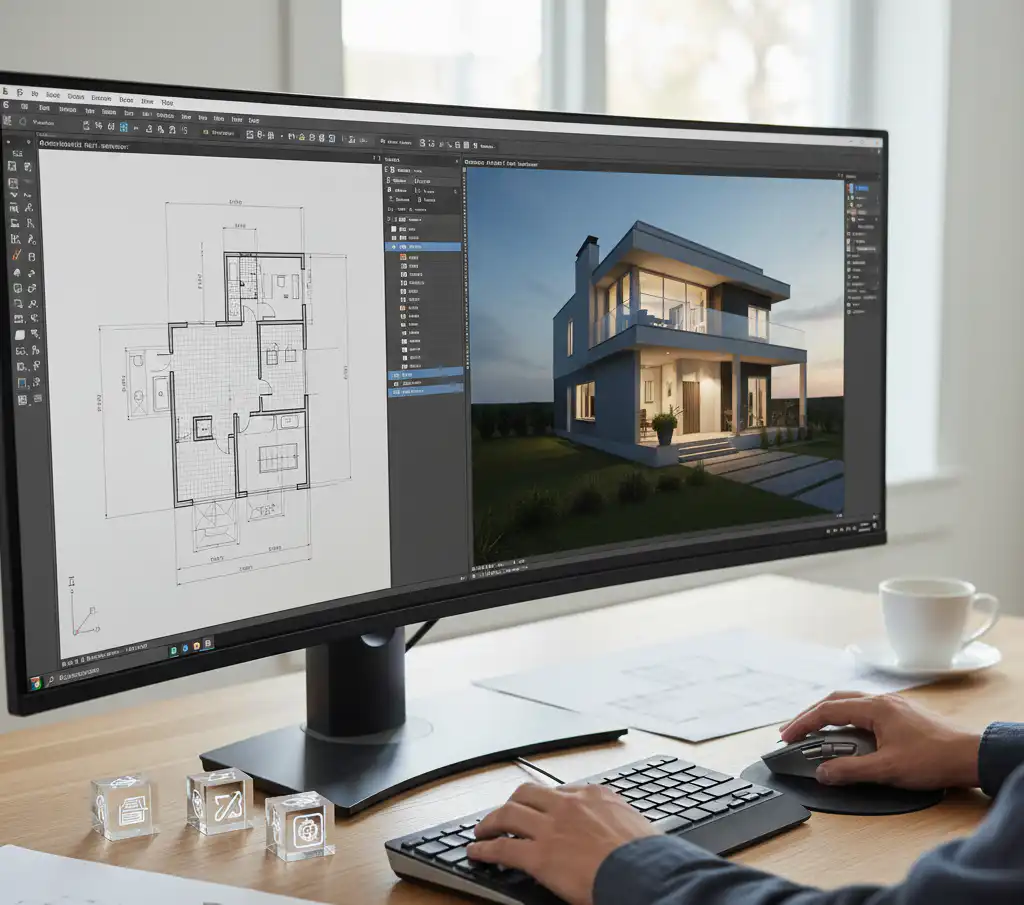
Get to Know the Interface: Figure out the layout, tools, and ribbon.
Key Commands: Get good at Line, Circle, Trim, Move, Copy.
Work with Layers: Keep your drawings tidy.
Set Up Drawing Units: Pick the right units and scale.
Use Modify Tools: Shape things up with care.
Turn On Object Snaps: Place things just right.
Make Blocks & Templates: Reuse designs to save time.
Know How to Save & Export: Learn to save and change file types.
Keep at It: Get better by drawing simple floor plans.
How do you use AutoCAD?
Step
Action
Command/Details
1
Launch AutoCAD
Open from desktop or Start menu. Choose a template or start a new drawing.
2
Understand the Interface
Learn the Ribbon, Command Line, Model Space, and Layout Tabs.
3
Set Units
Type UNITS → Choose type (Decimal, Architectural, etc.) and set precision.
4
Draw Basic Shapes
– LINE (L) → Draw lines – CIRCLE (C) → Draw circles – RECTANGLE
Use DIM → Add linear, angular, or radius dimensions.
8
Add Text and Annotations
TEXT or MTEXT → Add labels or notes to your drawing.
9
Save Your Work
Use SAVE or Ctrl + S to save your file.
10
Plot or Print
Use PLOT or Ctrl + P → Set paper size, scale, and printer settings.
How does the AutoCAD interface work?
Title Bar
Shows the name of the drawing file that is open.
Indicates the version of AutoCAD being used.
Application Menu (Big “A” Logo)
Sits in the upper-left corner of the screen.
Lets you access options like New, Open, Save, Print, and Export for files.
Quick Access Toolbar
Positioned above the Ribbon area.
Contains shortcuts including Save, Undo, Redo, and Open.
You can adjust it to keep your favorite tools handy.
Ribbon
A horizontal toolbar with tabs like Home, Insert, and Annotate.
Each tab has panels with options to draw, edit, arrange layers, add dimensions, and similar tasks.
Command Line
Found at the screen’s bottom.
Use it to type commands like LINE or CIRCLE and get prompts back.
It provides live suggestions and keeps a history of inputs.
Drawing Area (Model Space)
This is the main area where you design your work.
Everything you draw here is done at a 1:1 full scale.
Navigation Bar & ViewCube
You can find it on the right side of the Drawing Area.
It lets you zoom, pan, and rotate the view handy in 3D designs.
The ViewCube makes switching view directions fast and easy.
Status Bar
It’s located at the very bottom of the interface.
You can use it to toggle features such as:
Grid: Adds a grid as a background.
Ortho: Keeps movement horizontal or vertical.
OSNAP: Lets you snap to precise points like midpoints or endpoints.
Dynamic Input: Displays input coordinates next to the cursor.
Layout Tabs
Underneath the drawing section.
Swap between Model Space and Layout (Paper Space) to set up printing and plotting.
How do AutoCAD tools work?
Tool Selection You pick tools using the Ribbon, toolbars, or by entering commands directly into the Command Line.
Drawing Tools These tools help you make shapes like lines, circles, rectangles, or even 3D objects. After picking a tool, you provide points or measurements to create the shape.
Modify Tools Tools such as Move, Copy, Rotate, Trim, and Scale allow you to adjust objects already on the drawing. You select the item and decide what changes to make.
Precision Input Many tools need exact details like coordinates, distances, or angles. You can type these details or click on the drawing.
Options and Settings Options or settings let you customize how tools or commands behave for your needs. You can choose extra settings in many tools, like line type, radius, or layer. These options show up in dialog boxes or the command prompt.
Repeat and Undo Press Enter to use the last tool again. Use Undo commands to fix mistakes or reverse actions.
What tools are available for navigation in AutoCAD?
Tool
Description
How to Use
Pan
Moves the view horizontally or vertically without changing zoom.
Click and drag the middle mouse button or type PAN.
Zoom
Changes the magnification of the drawing view.
Use mouse scroll wheel, or type ZOOM and select options (Extents, Window, Previous).
Orbit
Rotates the view in 3D to see different angles.
Hold Shift + middle mouse button drag, or type 3DORBIT.
ViewCube
Interactive cube for quick 3D view orientation.
Click faces, edges, or corners of the cube displayed on the screen.
SteeringWheels
Combines Pan, Zoom, and Orbit into one interface tool.
Activate with the WHEEL command or click the SteeringWheels icon.
Regen
Refreshes and redraws the screen to update the view.
Type REGEN to fix display glitches or update changes.
What hardware and software requirements are needed for AutoCAD setup?
AutoCAD Hardware Requirements
Component
Minimum
Recommended
Processor (CPU)
2.5–2.9 GHz processor
3+ GHz processor with multiple cores
RAM
8 GB
16 GB or more
Graphics Card
Basic GPU with 1 GB VRAM
Dedicated GPU with 4 GB+ VRAM supporting DirectX 11 or later
Disk Space
7+ GB free disk space
SSD (Solid State Drive) preferred
Display
1360 x 768 resolution minimum
1920 x 1080 or higher
Input Devices
Mouse or compatible pointing device
3D mouse (optional)
AutoCAD Software Requirements
Requirement
Details
Operating System
Windows 10 64-bit or later; macOS Big Sur (or newer for Mac version)
.NET Framework
.NET Framework 4.8 or later
Internet Connection
Required for installation, activation, and updates
Additional Software
Microsoft Visual C++ Redistributables (installed automatically)
What functions does AutoCAD offer for drafting and design?
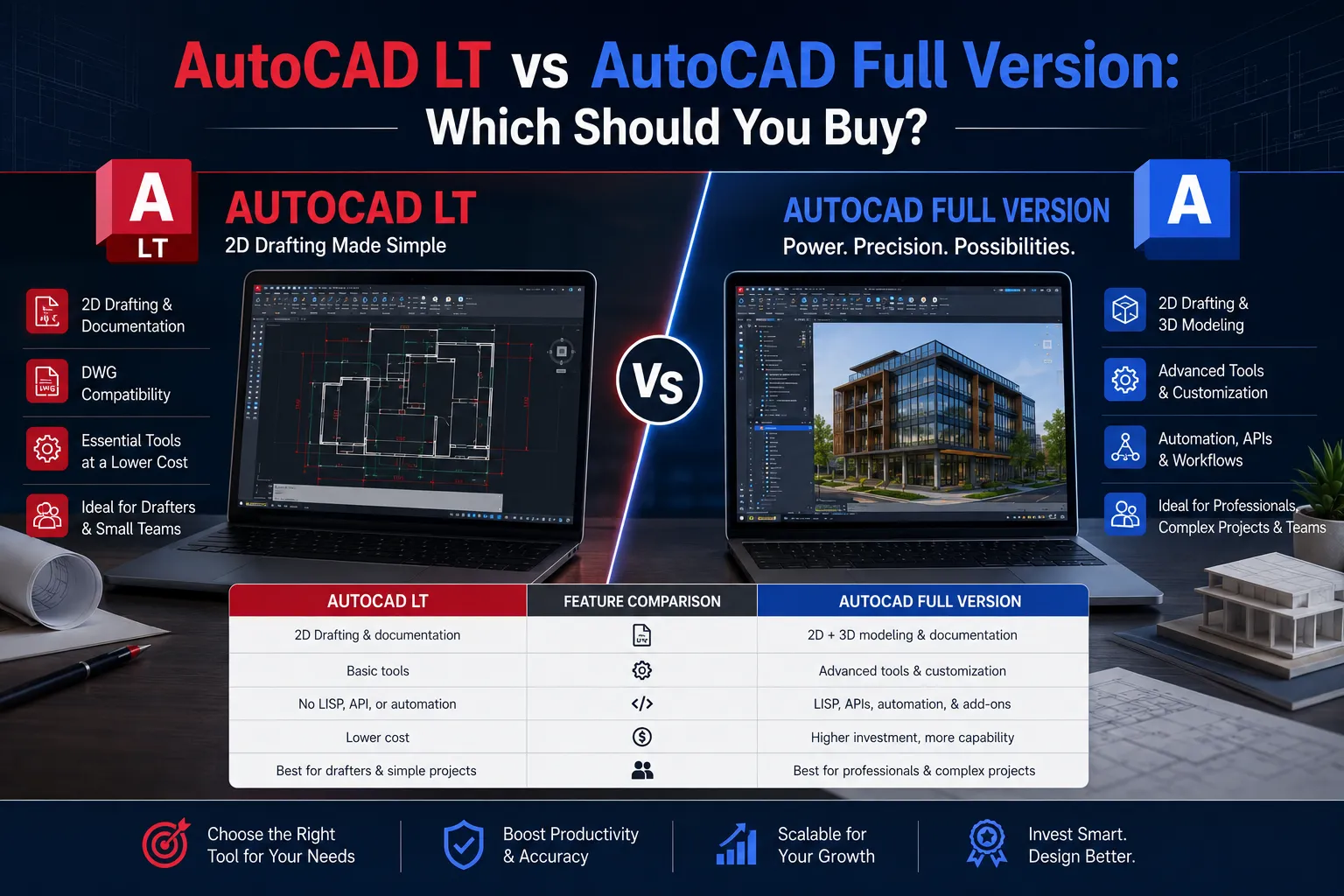
2D Drawing Tools: Draw shapes like lines, circles, polygons, arcs, rectangles, and ellipses. You can create many other basic geometric forms too.
3D Modeling: Construct and modify 3D meshes, solids, and surface structures with ease.
Modify Tools: Adjust your designs by moving, copying, scaling, rotating, or flipping them. You can also trim, extend, offset, chamfer, fillet, or mirror objects.
Layer Management: Separate your drawing elements by adding layers. Assign unique colors, line styles, and visibility settings to keep your work organized.
Precision Input: Ensure accuracy by using features like Object Snaps, Grids, Ortho mode, and Polar Tracking to perfectly position and align elements.