🔑 Software keys sent via WhatsApp or E-mail within 24 hours (1 Day) ! ⏳ If not received, Contact us! ! 📬

 Recently Updated
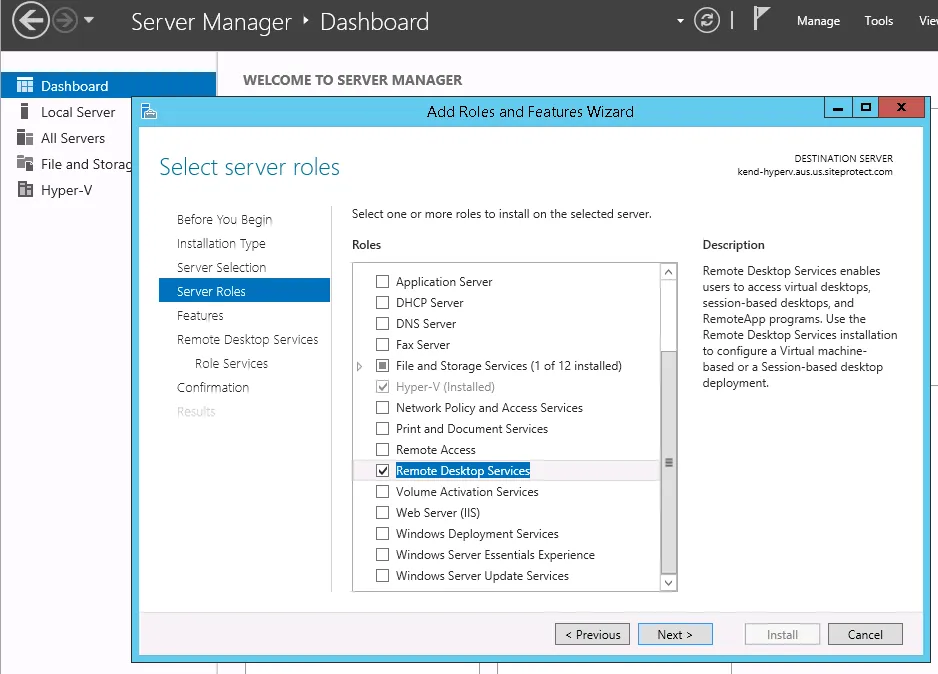
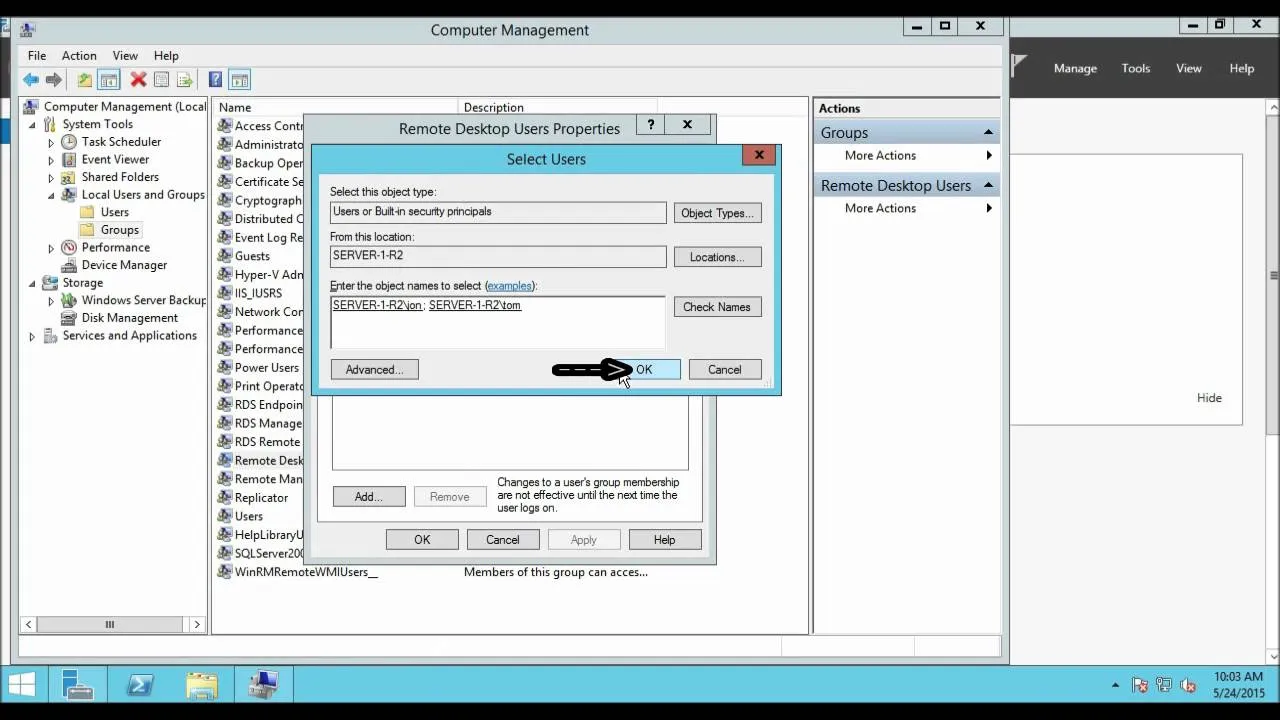
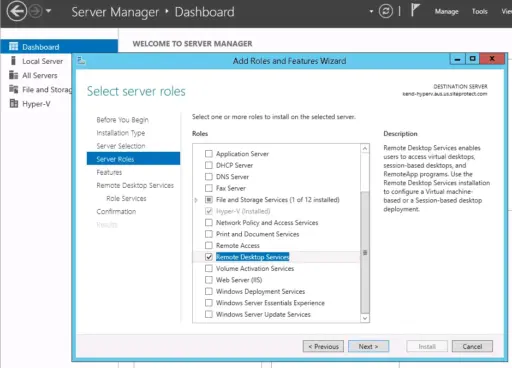


Windows Server 2012 Remote Desktop Services (RDS) works with Device Client Access Windows is organized through a Microsoft solution designed to provide secure, is work with centralized access to desktops and applications from virtually anywhere. With the help of Remote Desktop Services that works with organizations can deploy virtual desktops or remote desktops, or remote applications hosted on a central server. A 50 Device CAL package allows up to 50 unique devices to access the server’s RDS environment. This model supports efficient resource use and simplifies license tracking.
Key Features:
1. Remote Desktop Session Host (RDSH):
- Allows multiple users to access a shared Windows Server desktop or apps remotely.
- Centralized app management: install once on the server, use everywhere.
2. Centralized Desktop and Application Deployment:
- Deliver full desktops or individual RemoteApps to users or devices.
- Reduces the need to manage apps on local PCs.
3. Licensing Options with CALs (Client Access Licenses):
- User CALs: Ideal for users who need access from many devices.
- Device CALs: Ideal for shared computers or kiosks.
- Scalable to support 50 concurrent users or devices (based on your license).
4. Secure Remote Access:
- With the help of these features, users can access all remote desktops that support Remote Desktop Gateway (RD Gateway) for secure connections over the internet using HTTPS.
7. User Profile Disks:
- Store user profiles on a network location for fast, consistent experiences across sessions.
- Simplifies roaming user management.
8. Session and VM-Based Desktop Deployment:
- Support for both session-based desktops (multiple users share the same server session) and VDI (Virtual Desktop Infrastructure) using virtual machines.
9. Rich Remote Experience:
- High-quality audio/video redirection.
- USB redirection.
- Multi-monitor support.
- Printer redirection and clipboard sharing.
10. Management and Monitoring
- Use tools like Server Manager, PowerShell, and Performance Monitor to manage and track RDS environments.
- Built-in diagnostics for performance and connection issues.
Why Buy From Us?
- 100% Genuine Microsoft Licenses – Guaranteed authentic and compliant.
- Competitive Pricing – Get the best value for your IT investment.
- Expert Support – Friendly, knowledgeable team ready to assist with setup and licensing.
- Personalized Guidance – Our team always helps you choose the right licensing model for your needs.
- Easy License Management – Our team is always assisting with installation, activation, and configuration.
- Trusted Seller – Proven track record of customer satisfaction and reliability.
- Scalable Solutions – Flexible options as your business grows.
Redemption Guide:
1. Open RD Licensing Manager:
- Open Server Manager.
- Navigate to: Tools > Remote Desktop Services > Remote Desktop Licensing Manager.
2. Activate Your Licensing Server:
- In RD Licensing Manager, right-click your server → Activate Server.
- Follow the wizard:
- Choose Automatic connection (recommended).
- Enter Company Info (Name, Country, etc.).
- Complete the activation.
3. Install RDS CALs (User or Device):
- Right-click the activated server → Install Licenses.
- Follow the wizard:
- License program:
- Choose the appropriate type:
- Retail Purchase
- Open License
- Volume Licensing
- Choose the appropriate type:
- Enter:
- Agreement number (for Open License)
- Or your product key
- License program:
- Select RDS CAL type:
- Per User or Per Device (must match your purchase).
- Choose the number of CALs to install (e.g., 50).
- Complete the process.
4. Configure RDS Deployment to Use CALs:
- Go to Server Manager → Remote Desktop Services → Overview.
- Click Tasks > Edit Deployment Properties.
- Select RD Licensing:
- Set your license server (your current machine if local).
- Choose Per User or Device, matching your CALs.
5. Verify Licensing Setup:
- Open RD Licensing Diagnoser (from Server Manager or licmgr.exe).
- Ensure:
- No errors or warnings.
- License mode matches CALs.
- The licensing server is discoverable by RD Session Host.
Comparison Table:
| Feature | User CAL | Device CAL |
| License Per… | Individual user | Individual device |
| Ideal For | Users accessing RDS from multiple devices | Shared devices used by many users |
| Example Use Case | Office staff with laptops, tablets, phones | Shift workers sharing a terminal |
| Tracks Login By | Username | Device ID |
| CAL Usage Enforcement | Honor system (not tracked by server) | Tracked and enforced by the license server |
| License Reassignment | Requires tracking and justification | Tracked automatically by the system |
| Management Overhead | Higher (manual tracking) | Lower (automated tracking) |
| Cost Effectiveness | Best for mobile or multi-device users | Best for kiosks or single-point access |
| Typical Environments | Knowledge workers, remote workers | Call centers, labs, manufacturing floors |
| License Server Reporting | Limited tracking | Full tracking with expiration/grace period |
FAQs
What is an RDS CAL?
An RDS CAL (Remote Desktop Services Client Access License) is required for each user or device that connects to a Remote Desktop Session Host (RD Session Host) server.
Can I mix User and Device CALs?
No. A single RDS deployment must use either User or Device CALs, not both.
How do I activate my RDS Licensing Server?
- Open Remote Desktop Licensing Manager.
- Right-click the server → Activate Server.
- Follow the wizard and submit organization details.
How do I install RDS CALs?
- In Licensing Manager, right-click the server → Install Licenses.
- Select license program (Retail, Open, etc.).
- Enter agreement or license key.
- Choose User or Device CALs and complete the wizard.


Reviews
Clear filtersThere are no reviews yet.